in ♥️ with linux

After 20 years with macOS, I returned to Linux many days ago, including some days without hopping on Debian Stable.

GNOME 50 ... not yet

I had a brief window—okay, a few days—to distro-hop again after GNOME 50 was released, but then I realized ... I can just wait another 1.5 years for Forky. So it is still GNOME 48 for me :)

Testing laptop

Because I have a fantastic ThinkPad T460 sitting on my desk as a third machine, I’ve chosen it as the test machine for the upcoming Debian 14 (testing). This gives me a good preview of what’s coming, and honestly, I don’t quite dare to run Testing or Unstable in production. It’s supposed to work well, but Stable just runs too smoothly to switch.

Freeze solved

After my desktop (AMP Ryzen 5 CPU with Radeon RX 6500 XT GPU) kept freezing unpredictably for a while, the problem appears to have been resolved thanks to a newer kernel, AMD firmware and MESA from the backports repo.

More backports stuff

Recently, I also experimented with building backports for personal use, thanks to these instructions: SimpleBackportCreation. Works surprisingly simple. However, since the GNOME app ecosystem is focusing on Flatpak, installing software via Flatpak is more convenient.

Homelab

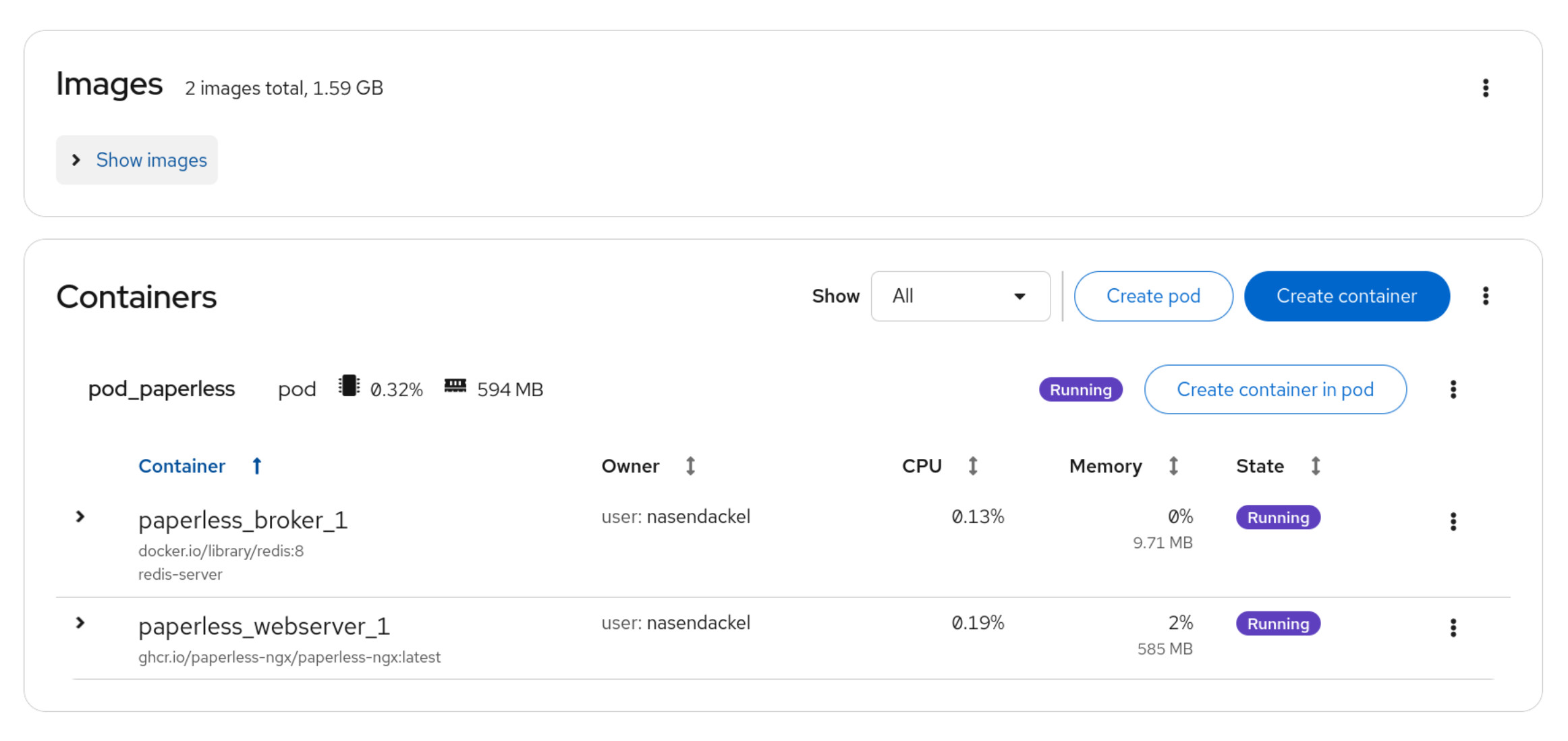
Now that my fiber optic connection is finally arriving soon, my server (also running Trixie) will take on entirely new tasks. I’m hoping my 'homelab' will grow a bit, and I’ll dive into something I currently know nothing about: containers. I’d therefore appreciate any tips, guides, or recommendations! Docker, Podman ... what to choose? Tips are more than welcome!

One thing that really bothered me was the difference in corner radius between GTK3 and GTK4 apps in GNOME.

GTK4 (Adwaita) has a 15px radius on all corners, while GTK3 has a smaller radius only on the top corners.

Fortunately, this can be customized with a little CSS. This way, everything looks great even with the default Adwaita theme.

Solution: .config/gtk-3.0/gtk.css

Just add this to the gtk.css in .config/gtk-3.0 (in your homefolder).

/* Rounded corners */
headerbar {
  border-radius: 15px 15px 0 0;
}
window decoration {
  border-radius: 15px;
}
window, window.background {
  border-radius: 0 0 15px 15px;
}
menuitem decoration {
  border-radius: 0;
}
/* Rounded corners */

Firefox and Thunderbird

In Firefox and Thunderbird, a few more steps are required, as the bottom corners need to be explicitly enabled.

Firefox

Enter about:config in the address bar to access the settings. Here, set the value widget.gtk.rounded-bottom-corners.enabled to true.

Thunderbird

You can access the same setting via Settings > General > Config Editor. Set the value to widget.gtk.rounded-bottom-corners.enabled and true here as well.

QT? BUGS?

That's the next thing to do is tune qt-apps... and there a still a few dialogs that doesn't work....

This is the second month of my one-year challenge: No distrohopping ... only use Debian stable.

That's why this post, like the next 10, is more of a diary and reflection on the last month with Debian.

Even in the second month, I can only say that I am very happy. I consider the fact that I am not necessarily using the latest software to be a huge advantage.

Everything works and I can continue to focus on optimizing workflows. Examples include syncing KeepassXC / KeepassDX to a smartphone via gsconnect / kdeconnect.

Everything works, and I can continue to focus on optimizing workflows. Examples include syncing Keepass to my smartphone via gsconnect (kdeconnect) or backing up/sharing important family documents with Cryptomator.

GNOME is increasingly becoming my favorite desktop, and floating suits me better than tiling.

But I've also realized that dark mode isn't for me. I felt the same way with macOS. Only the editor and terminal are dark.

I also like the Papirus icon set more than Adwaita. Basically, Adwaita isn't really an icon set, since many apps come with their own icons. Some are good, some aren't to my taste. Papirus provides consistency.

Unfortunately, not all apps are included in Papirus: Tuba and Newsflash are still missing (I built something myself for Tuba, let's see if Newsflash is still missing).

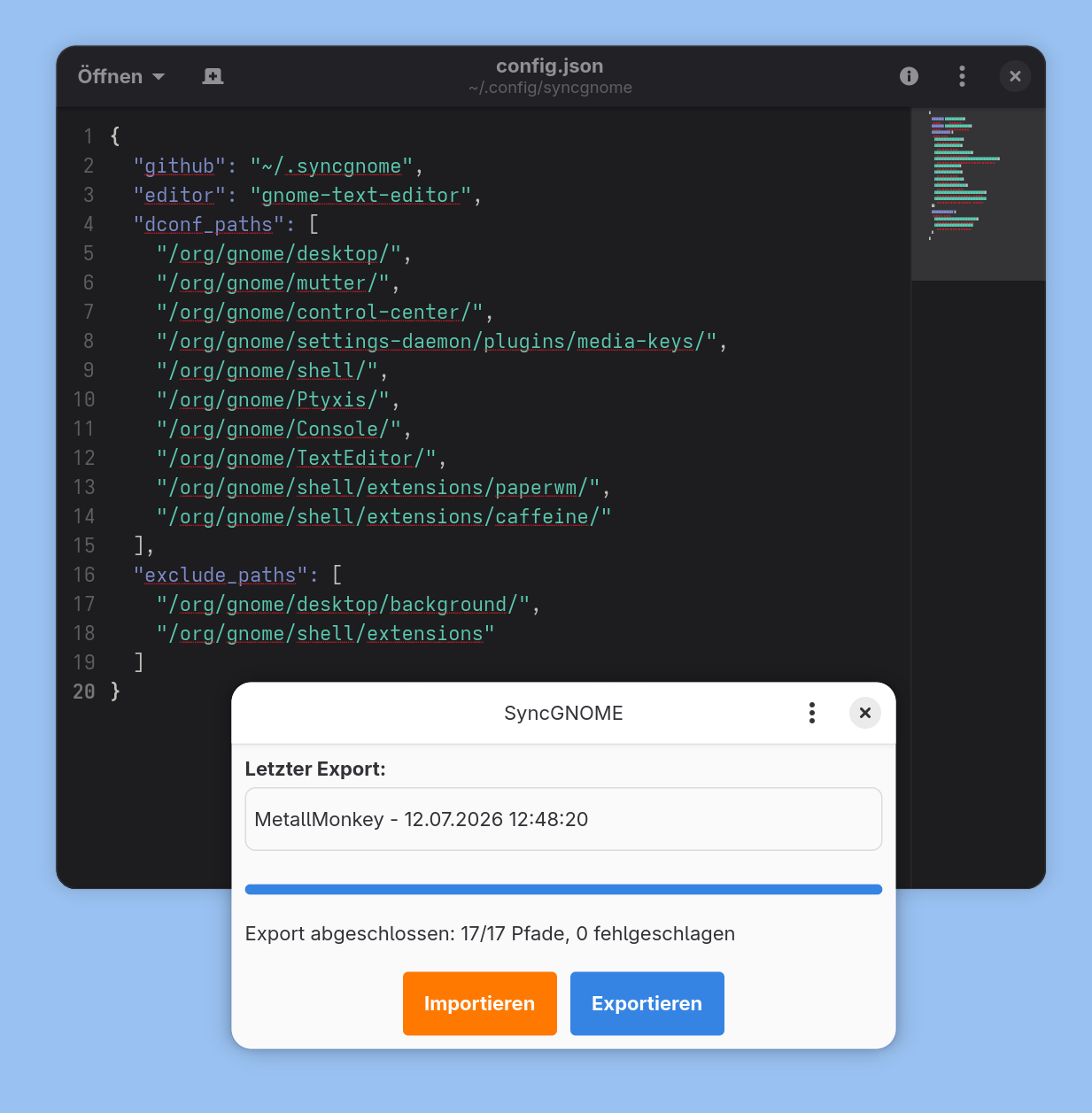
What I'm really getting more and more excited about is dotdrop. It now syncs not only my dotfiles, but also dconf settings, i.e. my Gnome settings between my PC and laptop. Here, too, everything is packaged in a Bash script, so the operator only has to select export or import.

Currently, I’m tinkering with this blog because I’ve switched from hosting with write.as to self-hosting Writefreely on Uberspace.

Basically, Writefreely is the foundation for write.as, but now that I have direct access to all the files – thanks to it being open-source – I can customize it even more.

However, this means I had to reset a few things first to integrate them better – I no longer need to rely on JavaScript workarounds, only using them for cosmetic fun. Everything will work without javascript.

So if something occasionally appears twice in the RSS feed or the Fediverse... sorry about that. I’m still tinkering!

I’ve completed one month with Debian stable. It sounds dramatic, but it’s actually been a positive experience.

Switching from a rolling release like openSUSE Tumbleweed was quite a change, but I’ve really come to like the stable foundation Debian offers.

Some software is a few versions older—which isn’t a big deal—but there are also things that aren’t (or aren’t yet) available in the Debian repositories.

But for that, there’s Flatpak, which I trust more than random third-party repositories.

Right now, my only issue is that my custom-built AMD PC occasionally and very rarely freezes. I’m on the case, though, and I actually suspect it’s a third-party program that doesn’t come from the Debian repo.

On the bright side of committing to Debian for a year, I’ve now got a solid backup strategy in place with Déjà Dup, Timeshift, and Dotdrop. Thanks to that, reinstalling the system is a breeze – especially helpful since I tend to tinker more than a lot!

Since I’ve still got 11 months with Debian ahead of me, one of my current projects is learning how to create .deb packages. The Debian documentation is excellent—but also quite complex!

But my first attempt with rofi 2.0 was a success—so maybe in 11 months, I’ll have my own repo! ;)

All in all: A positive experience in the first month and a happy outlook for the next 11 months with Debian. Beyond the technical aspects, there’s also the good feeling of being on the right side.

#debian #gnome

Lately, I've been doing a lot of distro hopping: openSUSE, Debian, openSUSE, Debian, Fedora, openSUSE, and Debian again.

At least it's relatively limited. But Arch and nixOS also keep tempting me.

However, I believe that I need to get to know one distro really well. So in 2026, I will only use Debian Stable on my two main computers (PC and laptop).

No more distro hopping until 2027.

Of course, anything goes on my hobby Thinkpad. So that you can check up on me, the header of this page counts (Javascript must be enabled).

#debian

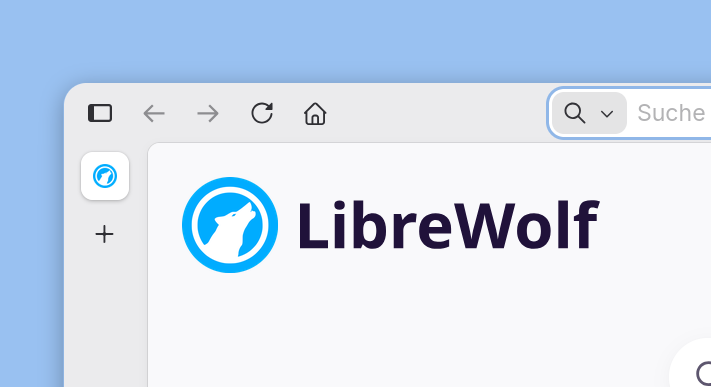
I've been a fan of the Speeddial since the early days of Opera. For me, a browser must have Speeddial. Unfortunately, Firefox (or Librewolf, in my case) has something similar, but it’s not the same. So you need something of your own.

Solution 1: HTML / Javascript

The simple solution is an HTML file that is set as the startpage in the browser.

It works somehow. I saved the URLs and images in a JavaScript file that is synced with chezmoi.

Solution 2: Bookmarks in Rofi

There is a great Python script for Rofi that uses Firefox's bookmark database. Since I sync my bookmarks with floccus, this is quite handy.

The script can also be easily adapted to Librewolf. I have also replaced Firefox with xdg-open so that I don't have to change the script, when changing browsers. This way I can easily use the bookmarks from Librewolf in Epiphany.

I store the script in .local/bin and start it in niri via

Ctrl+Alt+B { spawn-sh "rofi -theme bookmarks -modi 'Bookmarks: ':'rofi-bookmarks.py' -show";}

But those are bookmarks, not a Speeddial!

Link: rofi-bookmarks

Solution 3: Speeddial in rofi

Rofi is great. The launcher (drun, dmenu, etc.) is so flexible and can be scripted wonderfully.

At this point, I have to be honest:

Yes, I had help from AI (in my case, Kagi). My programming experience dates back to the 90s with Turbo Pascal. So, in long dialogues, I got the AI to code something useful. Maybe not great, but it's not rocket science either. If anyone wants to look at the code and, above all, improve it: feel free!

The result is based on three components:

Part 1: Rofi theme

This GitHub repository is a great source of inspiration and a basis for creating your own themes: https://github.com/adi1090x/rofi

I made use of it, but quickly turned the basis into something of my own.

I have a base theme (launcher.rasi) on which the theme for Speeddial (speeddial.rasi) is based. Accordingly, only changes are entered in speeddial.rasi.

Files: launcher.rasi and speeddial.rasi

Part 2: Bash-Script

The magic happens in speeddial.sh. This reads a JSON file containing the URL and location of the image for each tile. Both files are stored in ~/.speeddial

A simple function is also built in whereby entering +k search term triggers a search with Kagi.

Files: speeddial.sh and links.json

Part 3: Bash-Script for editing tiles

Another Bash script (also called speeddial.sh out of laziness) can edit the links.json file.

It basically has three functions: list, change, and convert.

The latter converts the json file into a Javascript file so that it can also be used in the HTML version (Solution 1).

When Speeddial +e is entered in Rofi, this script starts in the terminal (kitty).

File: speeddial.sh

Download:

All the files can be found in my dotfiles at codeberg: https://codeberg.org/Nasendackel/dotfiles

As a former mac user, I always liked the dock. Since I am now back at niri, I wanted to have not only a statusbar (with waybar), but also a kind of dock again.

As I now had a lot of experience with customising the waybar, it made sense to convert it into a kind of dock.

One quickly reaches the limitations of waybar, but with 1-2 tricks I can be quite satisfied (at the moment).

DotFiles:

You can find the whole setup in my dotfiles on codeberg: https://codeberg.org/Nasendackel/dotfiles

Step 1: A “Start” Menu

You need to create a custom module that accesses an XML file. The commands are specified in the config of waybar and the XML provides the menu structure in GTK.

waybar conf:

"custom/startmenu": {
    "format" : " ",
    "tooltip": false,
    "menu": "on-click",
    "menu-file": "~/.config/waybar/startmenu.xml",
    "menu-actions": {
		"about": "~/.config/niri/bin/about.sh",
		"info": "resources",
        	"shutdown": "systemctl poweroff",
        	"reboot": "systemctl reboot",
		"suspend": "systemctl suspend",
		"lock": "swaylock -f",
    },
},

startmenu.xml:

<?xml version="1.0" encoding="UTF-8"?>
<interface>
<object class="GtkMenu" id="menu">
 	<child>
		<object class="GtkMenuItem" id="about">
			<property name="label"> About</property>
    		</object>
	</child>
	<child>
		<object class="GtkMenuItem" id="info">
			<property name="label"> Ressources</property>
    		</object>
	</child>
	<child>
      		<object class="GtkSeparatorMenuItem" id="delimiter1"/>
    	</child>
    	<child>
		<object class="GtkMenuItem" id="lock">
			<property name="label"> Lock Screen</property>
        	</object>
	</child>
	<child>
        	<object class="GtkMenuItem" id="suspend">
			<property name="label"> Suspend</property>
        	</object>
	</child>
   	<child>
        	<object class="GtkMenuItem" id="reboot">
			<property name="label">󰑓 Reboot</property>
        	</object>
    	</child>
  	<child>
        	<object class="GtkMenuItem" id="shutdown">
			<property name="label">  Shutdown</property>
        	</object>
	</child>
</object>
</interface>

Step 2: Taskbar Module

The taskbar module lists all open apps. Unfortunately, you can only create shortcuts or list open apps with the Waybar. A classic dock is not possible. However, since I have assigned all important apps to shortcuts, only the display of open apps is sufficient for me.

It is important to set ‘sort-by-app-id’ to true so that the apps are grouped and sorted accordingly (see Step 4).

waybar conf:

"wlr/taskbar": {
	"format": "{icon}",
	"icon-theme": "Papirus",
	"icon-size": 32,
	"on-click": "minimize-raise",
	"active-first": false,
	"sort-by-app-id": true,
	"app_ids-mapping": {
		"kitty": "10_kitty",
		"librewolf": "20_librewolf",
		"firefox": "21_firefox",
		"chromium-browser": "23_chromium",
		"thunderbird-esr": "30_thunderbird",
		"dev.geopjr.Tuba": "31_tuba",
		"org.gnome.Fractal": "32_fractal",
		"signal": "33_signal",
	},
},

Step 3: Style

CSS is great because I understand it. The waybar and its modules can be customised easily.

waybar style.css:

#custom-startmenu {
  font-size: 24px;
  background-position: 6px center;
  background-repeat: no-repeat;
  background-size: 38px;
  border-style: hidden;
  padding:6px 20px 4px 20px;
  border-radius:1rem;
  background-image: url('niri-icon2.svg');
  background-color: @accent;
  margin:0 0 0 4px;
  border-bottom: 2px solid transparent;
}

#custom-startmenu:hover {
  background-image: url('niri-icon0.svg');
}

#taskbar {
  margin:0;
}

#taskbar button {
  font-size: 24px;
  background-position: center center;
  background-repeat: no-repeat;
  background-size: 32px;
  border-style: hidden;
  padding:6px 8px 4px 8px;
  margin:0 0 0 12px;
  background-color: @theme_base_color;
  border-radius: 1rem;
  border-bottom: 2px solid transparent;
}

#taskbar button.active {
  border-bottom: 2px solid @accent;
}

#taskbar button:hover {
  border-bottom: 2px solid @accent;
}

Step 4: Sorting icons

Now it's getting dirty. Sorting / grouping by app-id has the disadvantage that waybar here goes bluntly by alphabet. But I would like to sort by the workspaces ... is not possible!

So a little trick ... Rename the app-id with a numbering. I follow the assignment in config.kdl in niri. Terminal is always on workspace 1, browser on 2 and everything with communication on workspace 3. (See step 2).

But now there is another problem. By renaming the app, the waybar can no longer find the icon.

This means that .local/share/applications according .desktop files with the same name must be created.

Example 10_kitty.desktop:

[Desktop Entry]
Version=1.0
Type=Application
Name=kitty
Icon=utilities-x-terminal
NoDisplay=true

NoDisplay=true is important to not display it in dmenu (like rofi).

#opensuse #niri #wayland

Currently I have a lot of love for GNOME (with some extensions). Coming from a tiling manager, I now appreciate the floating system.

As a long-time macOS user, I can see what is unfortunately happening to the great mac right now. In my very personal opinion, Liquid Glass is a catastrophe.

The Mac is forgetting its roots, and those were definitely a good UI. Liquid Glass may work on the iPhone, but a desktop is something else entirely.

When I started using Linux, I spent a lot of time customising and “styling” apps: Themes, fonts, and icons. But I always ended up coming back to Adwaita as my default.

Beautiful Adwaita

Just a few example of the beautiful and simple look of Adwaita.

I cannot remember, when the Finder looked that good (must be in Leopard). I really like Nautilus.

Fun-Fact: The first version was designed by Andy Hertzfeld … so there is that old Mac spirit :)

Iotas is a simple note taking app with markdown.

That’s what a Settings-App should like:

Keyboard and mouse combination

Coming from Tiling Manager, I'm used to doing a lot with the keyboard. GNOME didn't give me (as a complete beginner) the impression that keyboard operation was a major feature. But on the contrary: it's really well integrated and really well thought out. Resizing windows with the arrow keys is more than brilliant. The same applies to moving windows.

However, I have changed all the keyboard shortcuts for myself:

SUPER + Q: Quits Application

SUPER + W: Hides Window

SUPER + E: Moves Window

SUPER + R: Resizes Window

Extensions needed

But why is GNOME only almost perfect? Well, I need to make a few adjustments for my workflow. But that's where the beauty of it comes in: GNOME has extensions. Lots of them. That's good, but it has the disadvantage that it's easy to lose track of what's good and what's bad for the system. I relied on the selection that Debian made for me. In other words, I only use extensions that are included with the distro.

Caffeine

Caffeine prevents the system from going into sleep mode.

Auto Move Window

This extension also launches programs in a specific workspace. For example, I always have all messengers in Workspace 3 and all tools in Workspace 4.

Tiling Assistant

It's not possible to do without tiling entirely. With Tiling Assistant, I basically only use the simple function that allows me to place programs next to each other. The extension can do much more, but I don't need it. I just like that all open programs are displayed as a “tiling” selection.

Appindicator

GNOME must have had a reason for not including a tray for minimized programs. Sometimes this is useful, even though I'm getting used to working without a tray. There is an extension available for the transition period.

dconf-Editor

Windows users know and hate regedit. Under GNOME, there is dconf, and comparing it to regedit is actually unfair, because dconf is great.

dconf is a low-level configuration system and settings management tool. Its main purpose is to provide a back end to GSettings on platforms that don't already have configuration storage systems.

The corresponding dconf editor is great for adjusting settings.

An example: As already described, I like certain apps to be launched on specific workspaces. I have also gotten used to keyboard shortcuts for launching and focusing on programs (thanks to using Sway or Niri).

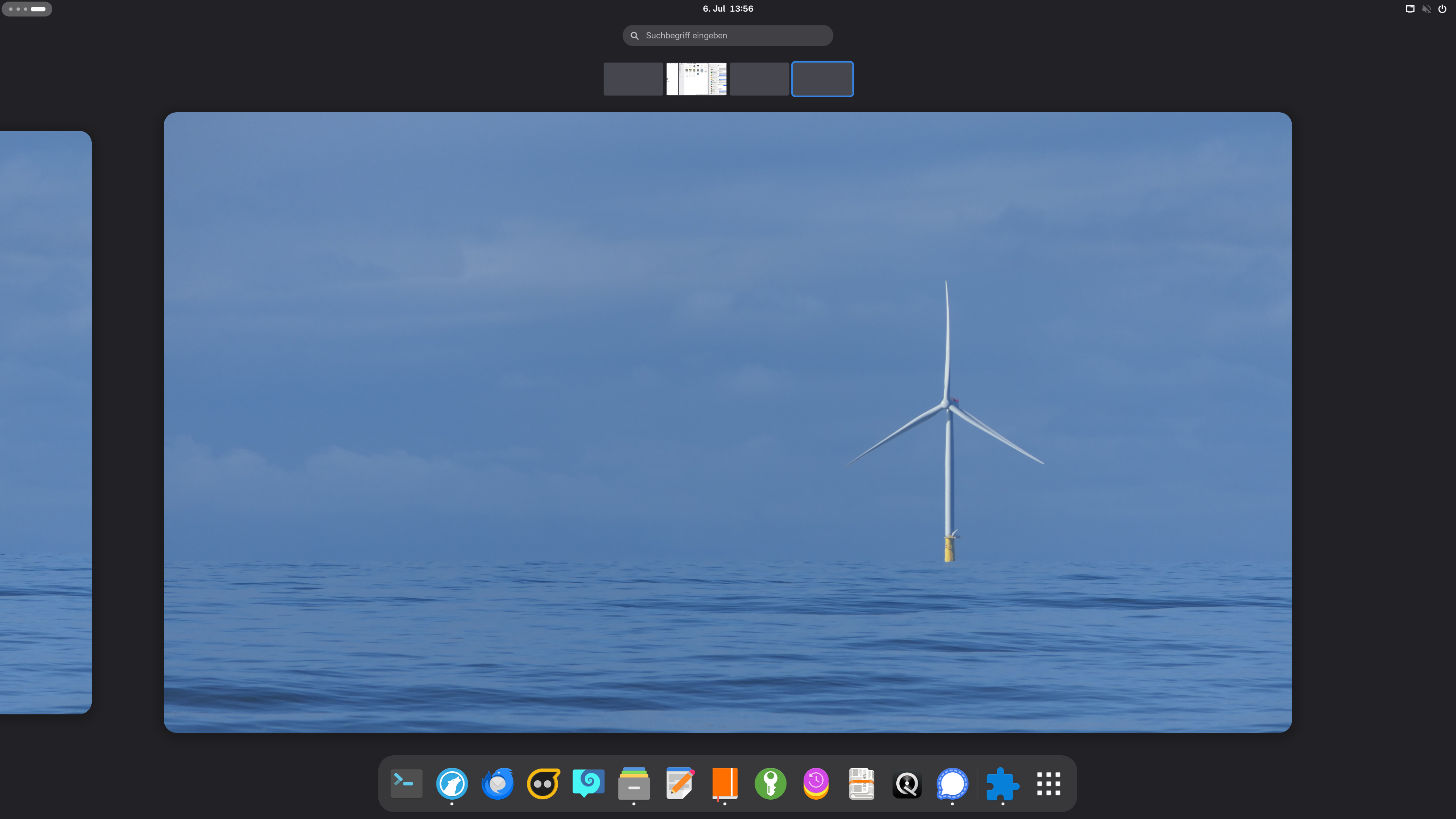
GNOME can handle shortcuts, but focusing would only be possible via an extension. One trick, however, is to use the new slots in the Dash (dock). These can be accessed via shortcut.

In dconf-editor, I can easily assign shortcuts to these nine locations.

Conclusion

After a month of intensive use, I think I'll stick with GNOME for a while longer. It's just fun and ... almost … beautiful.

It's kind of like a new macOS (in terms of the UI) for me.

#gnome

UPDATE: 23.10.2025

I use two computers: a desktop and a laptop.

Both computers should always be synchronized. Syncthing takes care of my files (music, images, documents), but the configurations should also always be the same.

Many Linux programs store their settings in the hidden .config directory. However, I don't want this folder to be completely synchronized, just individual files ... so called dotfiles.

This is where dotdrop comes in.

Dotdrop is a dotfiles manager that provides efficient ways to manage your dotfiles. It is especially powerful when it comes to managing those across different hosts. The idea of dotdrop is to have the abilit``y to store each dotfile only once and deploy them with different content on different hosts/setups.

Put simply, dotdrop makes a copy of the file in a specified directory and also takes care the permissions. This directory can then be synchronized between two computers using git (or any other tool).

It uses the hostname as the profile. This means that the configuration can also be used to specify which computer the file should be installed on.

Add a file to dropdrop

dotdrop import FILENAME

This adds to the profile of the current computer. However, a different profile (usually the host name of the other computer) can also be specified during import.

dotdrop import --profile=HOSTNAME FILENAME

If you want to import to all profiles, just use:

dotdrop import --profile=ALL FILENAME

The config file can be put in ~/.config/dotdrop/, among other places. However, since I also push other things to git (Codeberg) via this directory, I decided to use ~/.dotdrop.

I also use two configuration files: one for user files and one for system files.

dotdrop import --cfg=~/.dotdrop/config-user.yaml FILENAME

or

dotdrop import --cfg=~/.dotdrop/config-root.yaml FILENAME

Remove a file to dropdrop:

Also very simple. Just go to the correct folder and

dotdrop remove FILENAME

Installing a file

Once the file has been assigned to the corresponding profile in the configuration file, it is installed on the computer using the following command. Before doing so, it is of course advisable to execute a git pull to ensure that the current file has been loaded into the dotdrop folder.

dotdrop --cfg=~/.dotdrop/config-user.yaml install

Or for systemfiles:

sudo dotdrop --cfg=~/.dotdrop/config-root.yaml install

Conclusion

There are similar tools to dotdrop. The best example is chezmoi, which I really enjoyed using on openSUSE. However, this is not included with Debian. It was a bit of a shame at first, but now I like the simplicity of dotdrop.